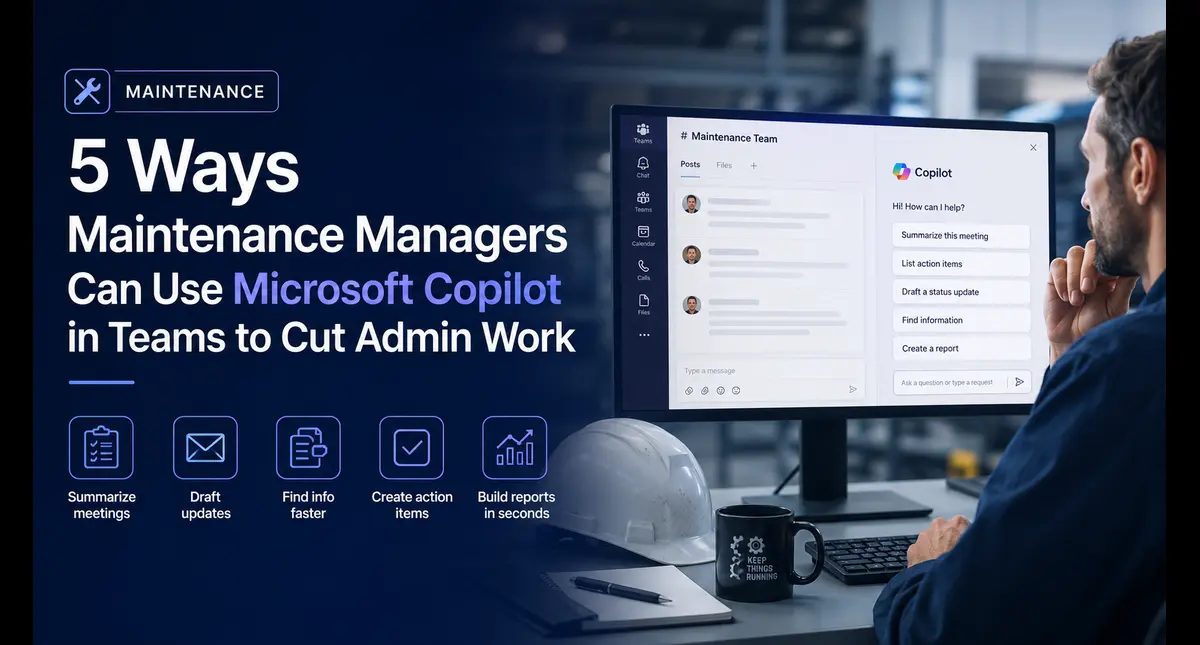
Most maintenance managers chasing AI tools are looking in the wrong direction. They are signing up for new platforms, testing free trials, and trying to convince IT to approve yet another software subscription.
If your organization uses Microsoft 365, and the majority of mid-to-large industrial organizations do, you may already have access to one of the most capable AI tools available. Microsoft Copilot is embedded directly inside Teams, Outlook, Word, and Excel. It is not a separate product you need to find budget for. It is sitting inside the software your team uses every day.
The problem is that almost nobody has told maintenance professionals how to actually use it for their specific work. Almost every Copilot tutorial online is aimed at salespeople, HR managers, or generic office workers. Nobody is writing about using it to manage corrective maintenance workflows, summarize handover meetings, or draft equipment failure reports.
That is what this article covers. I spent 13 years in industrial maintenance across petrochemical plants, foundries, HVAC manufacturing, and waste treatment facilities. These are the Copilot use cases that would have saved me the most time, built specifically around the workflows maintenance managers deal with every single day.
Before We Start: The Licensing Reality
Microsoft Copilot is not automatically active for every Microsoft 365 user. Here is what you need to know before expecting to use it:
- Microsoft 365 Copilot requires a separate add-on license: Currently around $30 USD per user per month on top of your existing Microsoft 365 subscription. Your organization needs to have purchased this. Paid license required.
- Even if your organization has Copilot licenses, they may not be assigned to your account. Check with your IT department or look for the Copilot icon inside Teams and Outlook. IT controls access.
- Some Copilot features are available in the free Microsoft Copilot at copilot.microsoft.com without a paid license, though these do not have access to your organizational data, emails, or Teams conversations. Free tier exists but is limited.
- If your organization does not have Copilot yet, this article still applies, bookmark it for when they do. Adoption is growing fast in industrial sectors.
| Check now: Open Microsoft Teams and look for a Copilot icon in the left sidebar or inside a Teams chat. If it is there, you have access. If not, contact your IT administrator and ask about Microsoft 365 Copilot licensing. |
Use Case 1: Summarise Maintenance Meetings in Seconds
Turn a 45-Minute Meeting Into a 2-Minute Action Summary
Every maintenance manager sits through meetings, shift handovers, planning reviews, contractor briefings, toolbox talks. The problem is not the meeting itself, it is what happens afterwards. Someone needs to write up the action items, decisions made, and follow-up tasks. That someone is usually you, and it usually happens at the end of an already long day. Microsoft Copilot in Teams can transcribe, analyze, and summarize any meeting you have held; pulling out action items, decisions, and key discussion points automatically.
How to access this in Teams:
- Open Microsoft Teams and go to the meeting in your calendar or chat history.
- Click on the meeting recording or transcript. Copilot requires transcription to be enabled.
- In the meeting recap panel, click the Copilot button.
- Type your prompt in the Copilot chat box.
Prompt to use:
| Summarize this maintenance planning meeting. List: (1) all corrective actions agreed upon and who is responsible, (2) any equipment flagged as critical or at risk, (3) decisions made about work scheduling or resource allocation, (4) any items that were unresolved and need follow-up. Format this as a structured meeting minutes document I can share with my team. |
Why this works:
Copilot has access to the full meeting transcript, so it is not summarizing from memory, it is reading every word that was said and extracting structured information from it. The prompt above forces it to organize that information the way a maintenance manager needs it: by actions, risks, decisions, and open items. A 45-minute meeting becomes a usable document in under 60 seconds.
Use Case 2: Draft Maintenance Reports Without Starting From Blank
Equipment Failure Report From Your Notes
After a significant equipment failure, there is pressure to produce a formal report quickly; for management, for HSE, for the maintenance record. Most maintenance managers open a blank Word document, stare at it, and start writing from scratch while simultaneously trying to manage the repair. Copilot in Word can take rough notes, even poorly written bullet points, and turn them into a structured, professional report.
How to access this in Teams:
- Open Microsoft Word with your Copilot license active.
- Type or paste your rough notes anywhere in the document.
- Click the Copilot icon in the Home ribbon.
- Use the prompt below in the Copilot draft panel.
Prompt to use:
| Using the notes I have provided, write a formal equipment failure report suitable for a plant manager and HSE review. Structure it with the following sections: Incident Overview, Equipment Details, Timeline of Events, Immediate Actions Taken, Preliminary Cause Assessment, Impact on Operations, and Recommended Next Steps. Use professional maintenance management language. Keep the tone factual and avoid speculation. Flag any areas where further investigation is needed. |
Why this works:
The instruction to flag speculation is deliberate and important. AI tends to fill gaps with plausible-sounding content. In a formal failure report that may be reviewed by HSE or used in an insurance claim, you cannot afford guesswork presented as fact. This prompt builds in a safeguard, areas of uncertainty are flagged rather than filled with fabricated detail. You still review and verify before submitting.
| Data caution: When using Copilot inside Microsoft 365, your data stays within your organization’s Microsoft tenant, it does not train public AI models. This makes it significantly safer for sensitive maintenance data than public AI tools. Confirm this with your IT or data governance team before including confidential process information. |
Use Case 3: Build a Weekly Maintenance Brief for Leadership
Turn Your Week’s Data Into an Executive-Ready Summary
Plant managers and operations directors want to know three things: what broke, what it cost, and what you are doing about it. Most maintenance managers either send a sprawling email full of technical detail that nobody reads, or say nothing and get called into a meeting to explain verbally. Copilot in Teams or Outlook can help you produce a weekly maintenance brief that is short enough for leadership to read and specific enough to be useful.
How to access this in Teams:
- Open Copilot in Teams by clicking the Copilot icon in the left sidebar.
- This version of Copilot has access to your Teams messages, emails, and meeting notes from the week.
- Use the prompt below to generate a brief from your week’s activity.
Prompt to use:
| Review my Teams messages, emails, and meeting notes from this week. Generate a weekly maintenance summary report for senior leadership. Include: (1) major equipment issues that occurred and their resolution status, (2) planned vs actual maintenance tasks completed, (3) any safety incidents or near misses, (4) critical equipment currently at risk or under monitoring, (5) resource or parts shortages affecting maintenance delivery. Keep it under one page. Use plain business language, no technical jargon. Format with clear headings. |
Why this works:
This is one of Copilot’s strongest capabilities inside Microsoft 365. It can pull from your actual week of communications rather than requiring you to manually compile information. The ‘under one page’ instruction is important. Leadership briefs that run to three pages do not get read. Copilot will naturally want to be comprehensive, the constraint forces it to prioritise.
Use Case 4: Prepare for Contractor and Vendor Meetings
Generate Briefing Notes and Questions Before External Meetings
Contractor briefings and vendor reviews require preparation, safety requirements, scope of work clarification, performance history, outstanding issues. Most maintenance managers walk into these meetings relying on memory or a quick scan of emails beforehand. Copilot can scan your recent communications with a contractor and generate a structured briefing note before the meeting starts.
How to access this in Teams:
- Open Copilot in Teams or Outlook.
- Reference the contractor or vendor name so Copilot can search your communications.
- Use the prompt below before your next contractor meeting.
Prompt to use:
| Search my recent emails and Teams messages related to [Contractor Company Name] over the past 30 days. Generate a pre-meeting briefing note covering: (1) outstanding work orders or punch list items, (2) any quality or safety issues raised, (3) payment or invoice queries, (4) upcoming scheduled work they are responsible for, (5) questions I should raise in the meeting based on unresolved items. Format this as a structured one-page briefing I can refer to during the meeting. |
Why this works:
The final instruction ‘questions I should raise based on unresolved items’ is what makes this prompt particularly useful. Copilot is not just summarizing your history with this contractor. It is identifying gaps and generating the follow-up questions you should be asking. That turns a passive summary into active meeting preparation.
Use Case 5: Draft Maintenance Procedures and SOPs
Convert Verbal Knowledge Into Written Procedures
One of the most valuable and most neglected maintenance tasks is documenting institutional knowledge. Your experienced technicians know how to do things that are nowhere in writing. When they leave, that knowledge goes with them. Copilot in Word can convert rough verbal descriptions or bullet point notes into properly formatted standard operating procedures that meet documentation standards.
How to access this in Teams:
- Open Microsoft Word with Copilot active.
- Type or paste your rough notes, verbal description, or bullet points about the procedure.
- Open the Copilot panel and use the prompt below.
Prompt to use:
| Using the notes I have provided, write a formal Standard Operating Procedure (SOP) for maintenance technicians. Structure it with: Purpose, Scope, Required Tools and Parts, Safety Precautions and PPE Requirements, Step-by-Step Procedure (numbered), Acceptance Criteria, Common Faults and Troubleshooting, and Document Control information (version number, date, author). Write at a level appropriate for a qualified maintenance technician. Use clear, direct language with no ambiguity in the procedure steps. |
Why this works:
The instruction ‘no ambiguity in procedure steps’ is critical for safety-critical maintenance environments. Vague SOPs are dangerous SOPs. This prompt forces Copilot to write each step as a specific, verifiable action, not a general description. The troubleshooting section is often missed in manually written SOPs but is one of the most practically useful sections for technicians working under time pressure.
| Once drafted, every SOP must be reviewed by a qualified engineer or senior technician before use. AI-generated procedures reflect general industry practice, they must be validated against your specific equipment, site conditions, and safety requirements before becoming an official document. |
What Microsoft Copilot Cannot Do for Maintenance Managers
It is important to be direct about the limitations so you do not build workflows around capabilities that do not exist.
- Copilot cannot connect to your CMMS unless your organization has specifically integrated it via Microsoft Power Platform or a custom connector. It works with Microsoft 365 data; Teams, Outlook, SharePoint, Word, Excel, not third-party maintenance software. No direct CMMS integration.
- If your organization has not enabled meeting transcription, Copilot cannot summarize meetings. Transcription must be switched on by your IT administrator. Meeting summaries require transcription enabled.
- Copilot reflects the quality of your Microsoft 365 data. If your Teams channels are disorganized or your emails are vague, the summaries it produces will be equally vague. Garbage in, garbage out.
- Copilot output must always be reviewed by a qualified person before it is used in a formal document, submitted to management, or used to make a technical decision. Always requires human review.
Frequently Asked Questions
Q: Is Microsoft Copilot the same as ChatGPT?
No, though they use similar underlying technology. Microsoft Copilot is built on GPT-4 technology from OpenAI, but it is integrated directly into Microsoft 365 and has access to your organizational data, your emails, Teams messages, documents, and calendar. ChatGPT is a standalone tool with no access to your organizational systems unless you manually paste information into it. For maintenance managers in Microsoft environments, Copilot is more powerful for day-to-day workflows because it works with data you already have.
Q: Is it safe to use Copilot with sensitive maintenance or process data?
Microsoft 365 Copilot processes data within your organization’s Microsoft tenant. It does not use your organizational data to train public AI models, and it respects your existing Microsoft 365 security and compliance policies. This makes it substantially safer for sensitive industrial data than public AI tools. That said, you should confirm your organization’s specific data governance policies with your IT or compliance team before using Copilot with highly sensitive process or safety information.
Q: How do I get my organization to enable Copilot if it is not available yet?
Start by identifying whether your organization already has Microsoft 365 Copilot licenses, your IT administrator will know. If not, the conversation to have with leadership is a productivity ROI argument: Copilot reduces administrative time across every department that uses Microsoft 365. For maintenance specifically, quantify the hours per week your team spends on documentation, reporting, and meeting summaries, that is your business case. Present it in terms of hours saved per person per week multiplied by fully-loaded labor cost.
Q: Can Copilot replace my CMMS?
No. Your CMMS manages asset history, work order workflows, spare parts inventory, and maintenance scheduling at a systems level. Copilot helps you work faster within Microsoft 365, drafting documents, summarizing meetings, extracting information from emails. They serve different functions. The most effective setup is using both: Copilot for communication and documentation efficiency, your CMMS for asset and work order management.
Q: Where can I learn more about AI tools specifically for maintenance management?
Mechtrician.com covers practical AI applications for industrial maintenance professionals, without the vendor marketing or generic business content. Articles cover specific tools, real workflows, and prompts built around actual maintenance management scenarios. Subscribe to the Mechtrician newsletter for new resources as they are published.
The Bottom Line
Microsoft Copilot is not a magic solution and it is not a replacement for maintenance expertise. But for maintenance managers drowning in administrative work; meeting writeups, failure reports, leadership briefs, contractor preparation, procedure documentation, it is a genuinely useful tool that most organizations are already paying for and barely using.
The five use cases in this article are not theoretical. They address real time sinks that maintenance managers deal with every week. If you implement even two of them consistently, you will recover several hours per week that currently go to documentation work.